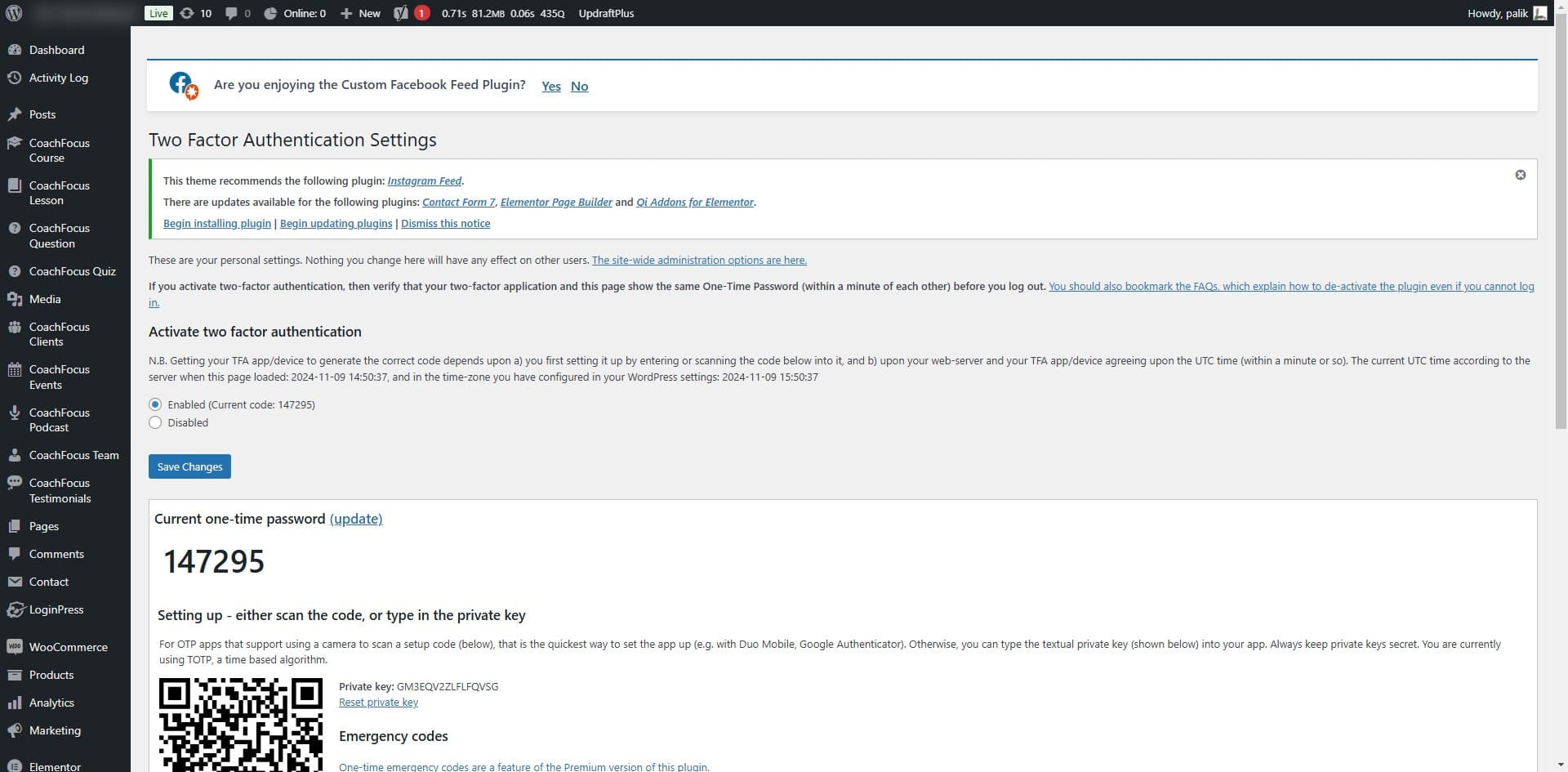
WordPress 2FA Setup for users
Go to https://{{strona}}/wp-admin and log in to admin dashboard
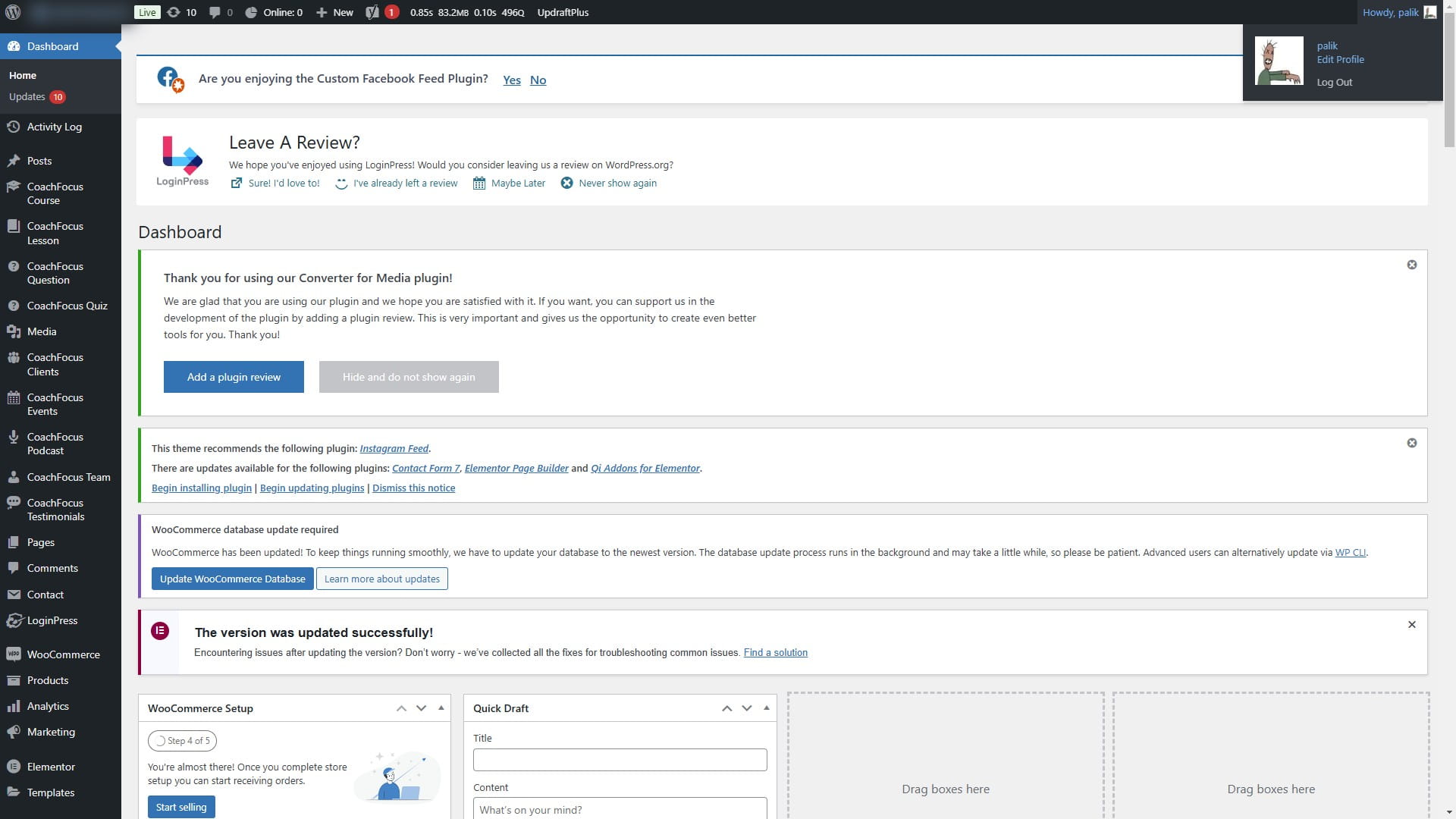

Click on "Edit Profile"
Click here
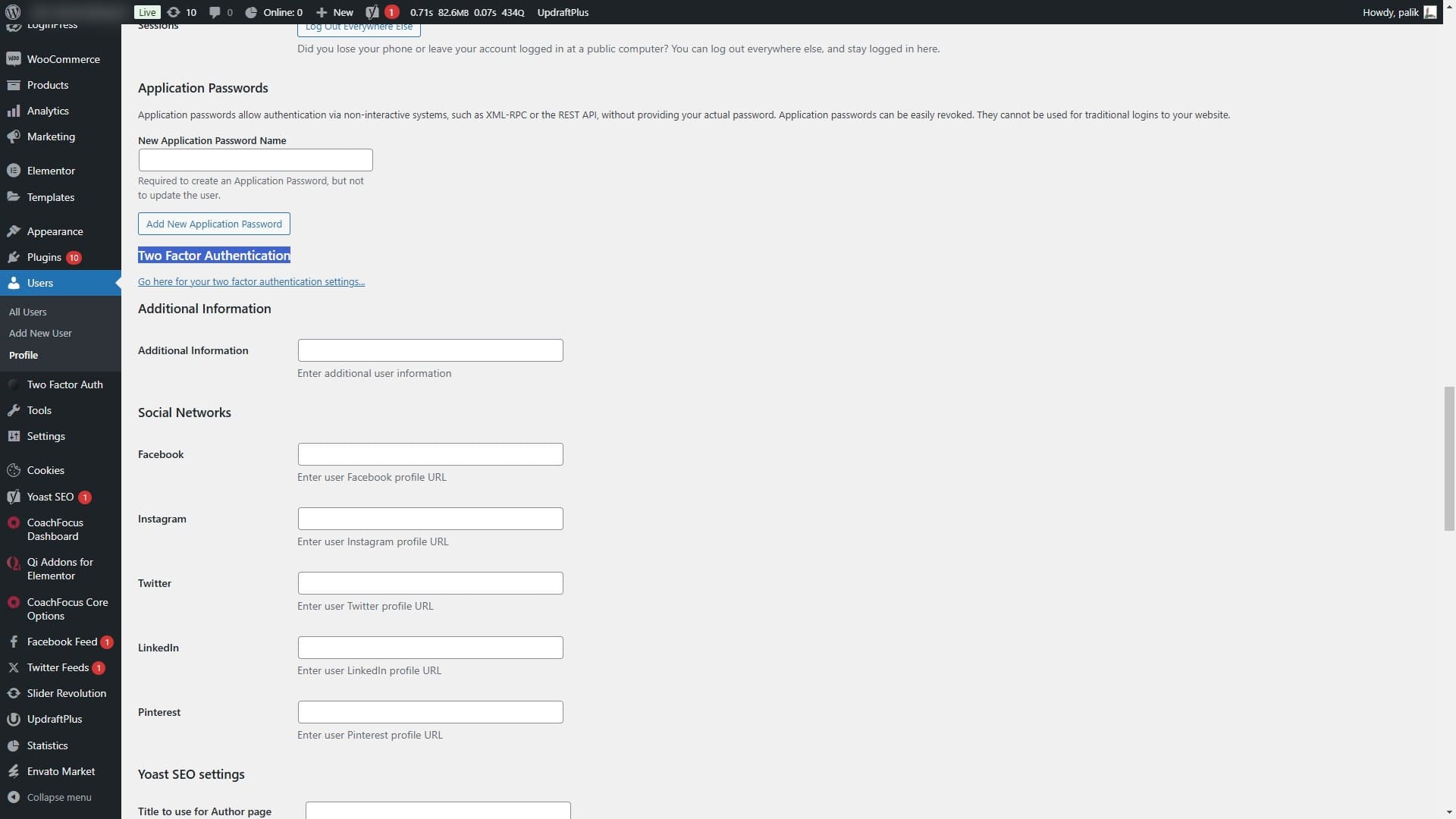
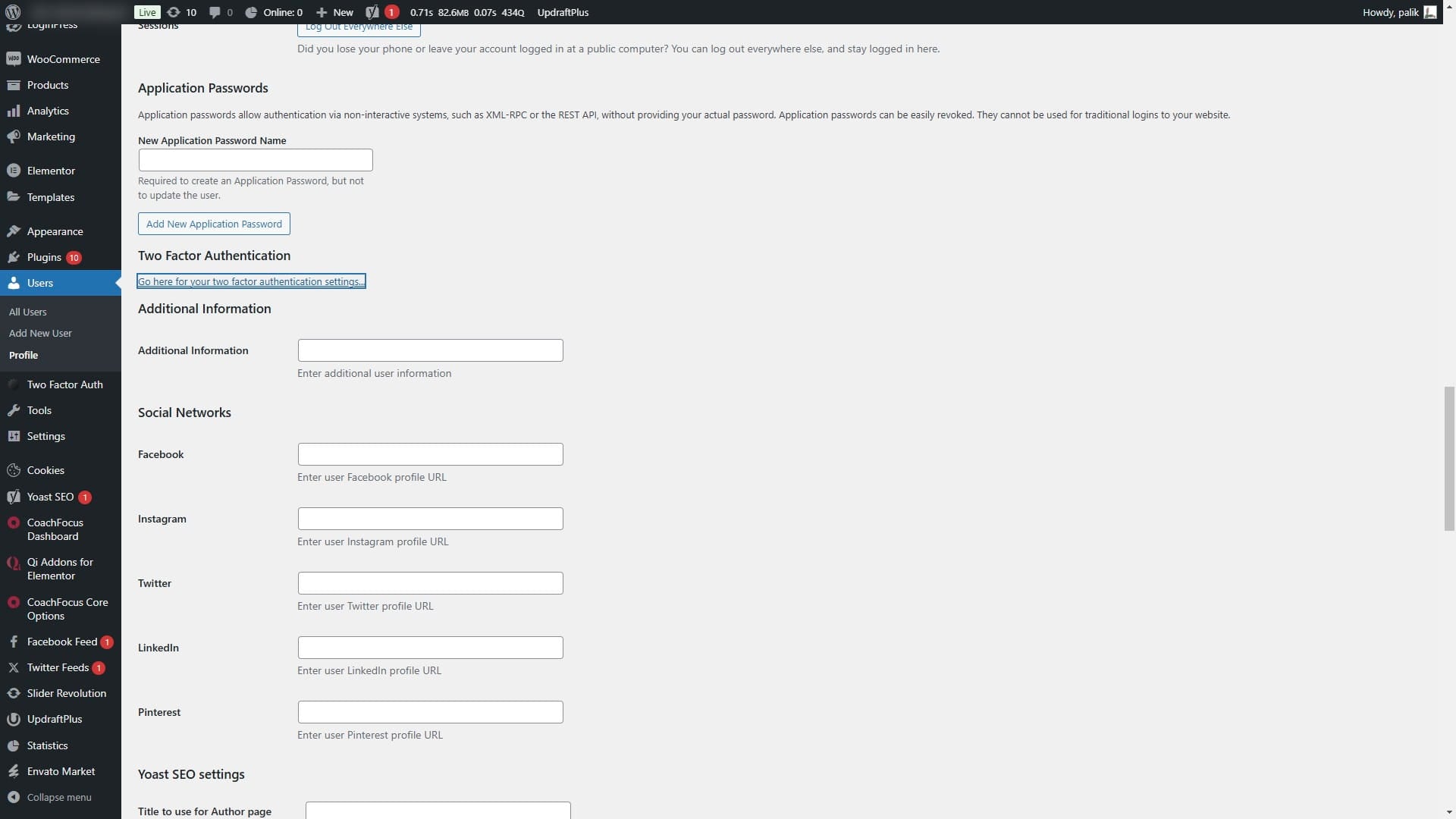
Click on "Go here for your two factor authentication setting"
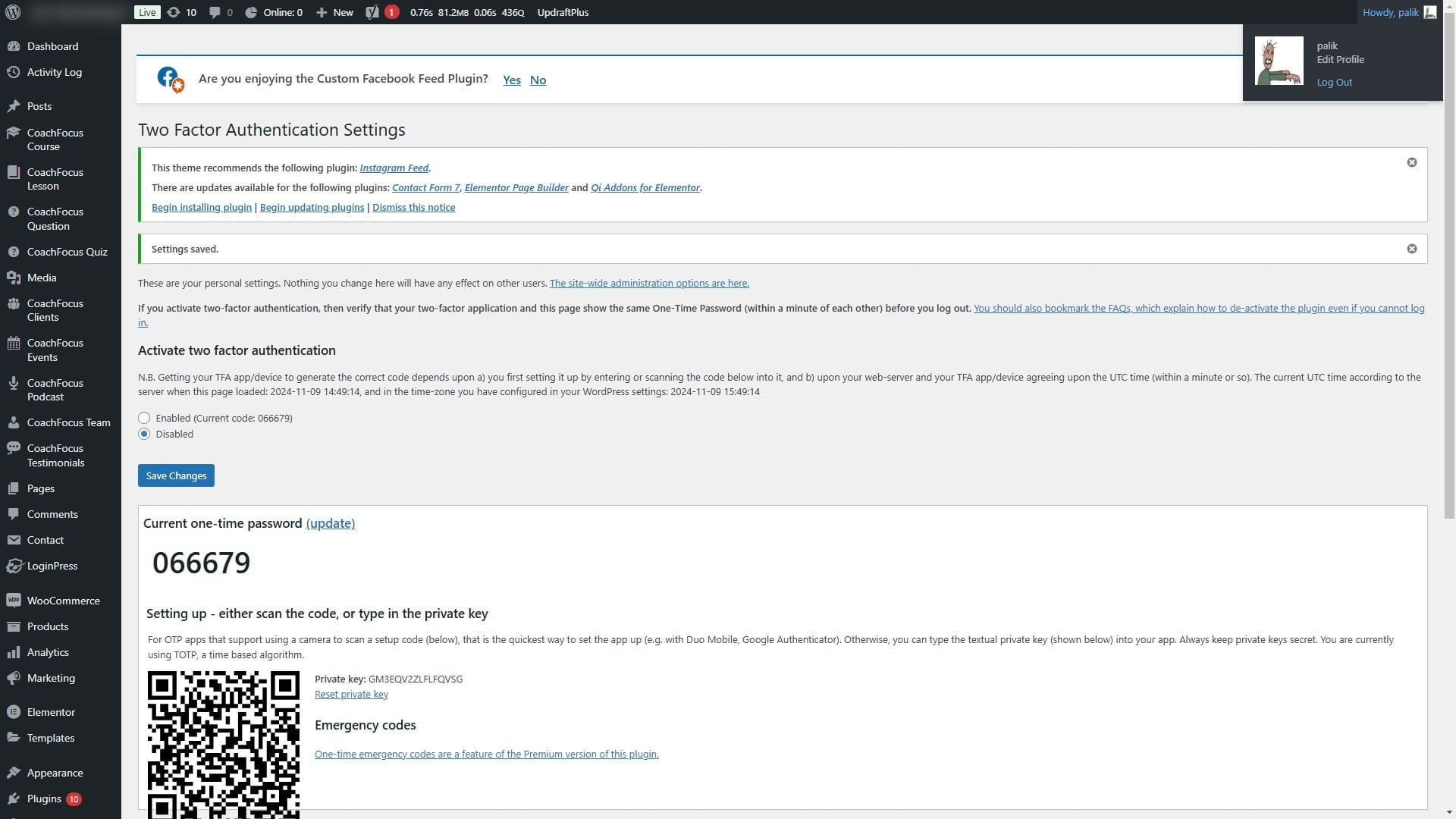
Use your TOTP Authenticator App (e.g. Google Authenticator) to scan the QR code. Alternatively you can copy text after "Private key: " and insert into your App.
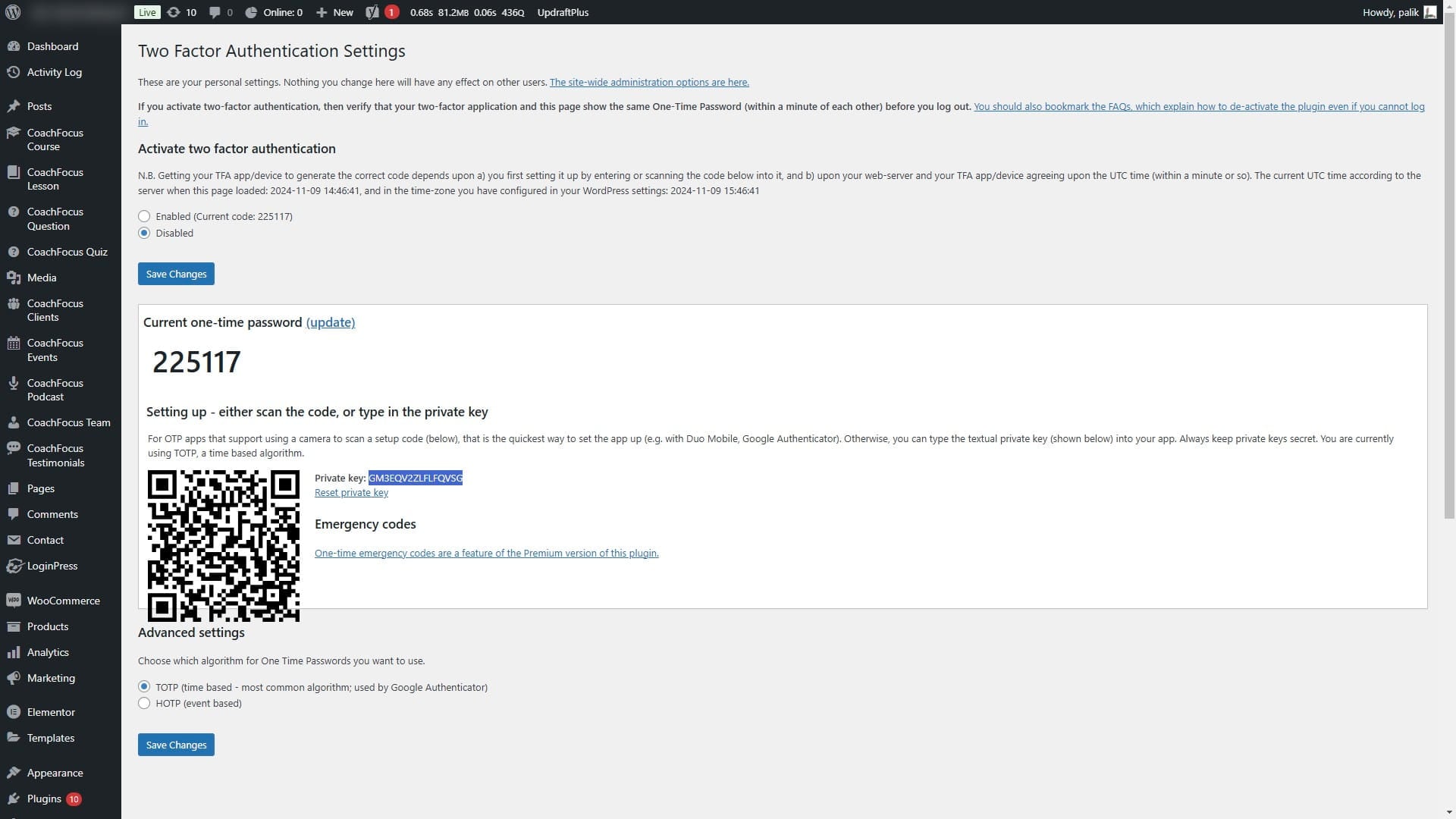
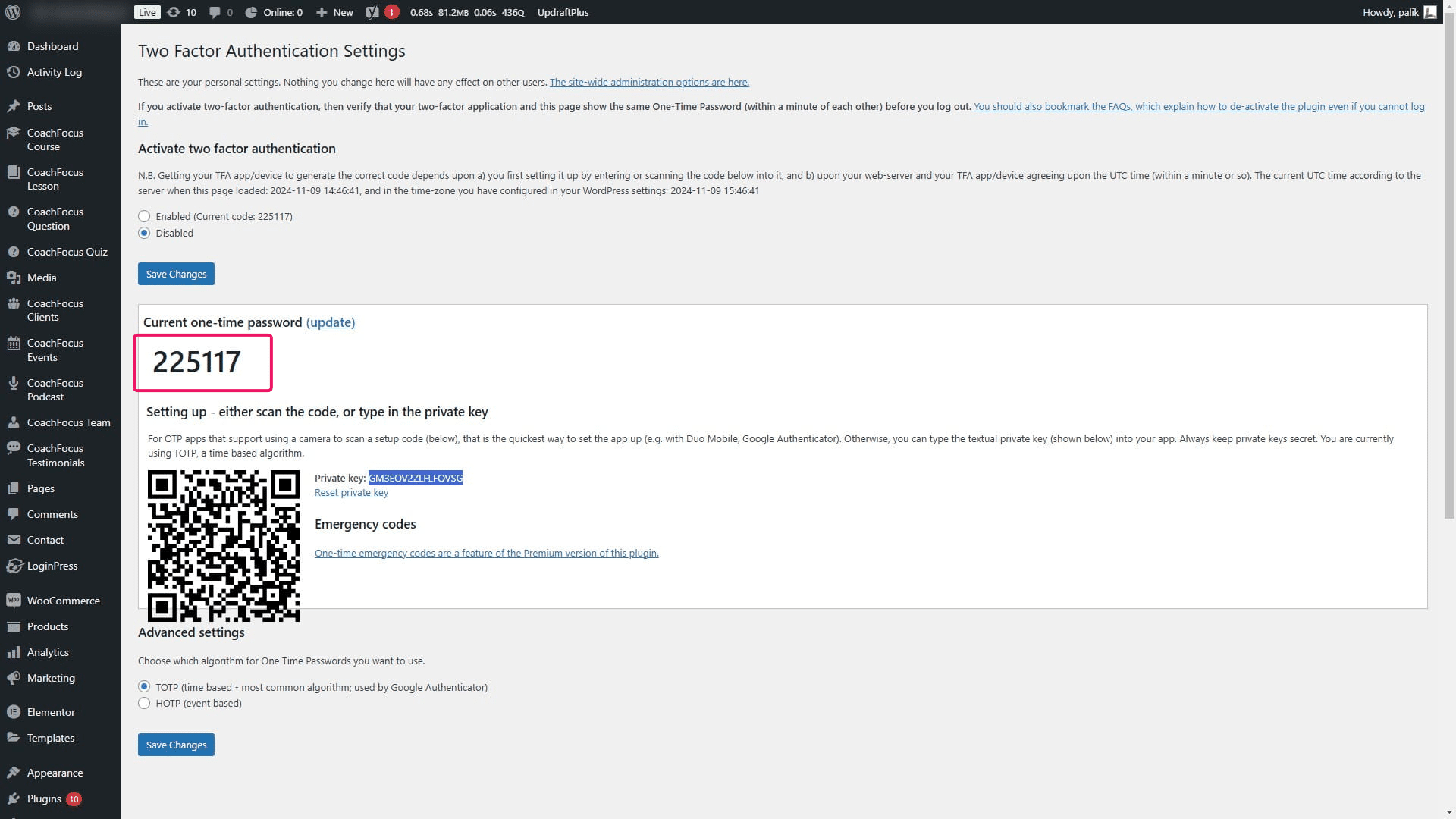
Make sure that the one-time password 6-digit code is the same on the screen and in your Authenticator App.
Select "Enabled" under "Activate two factor authentication"
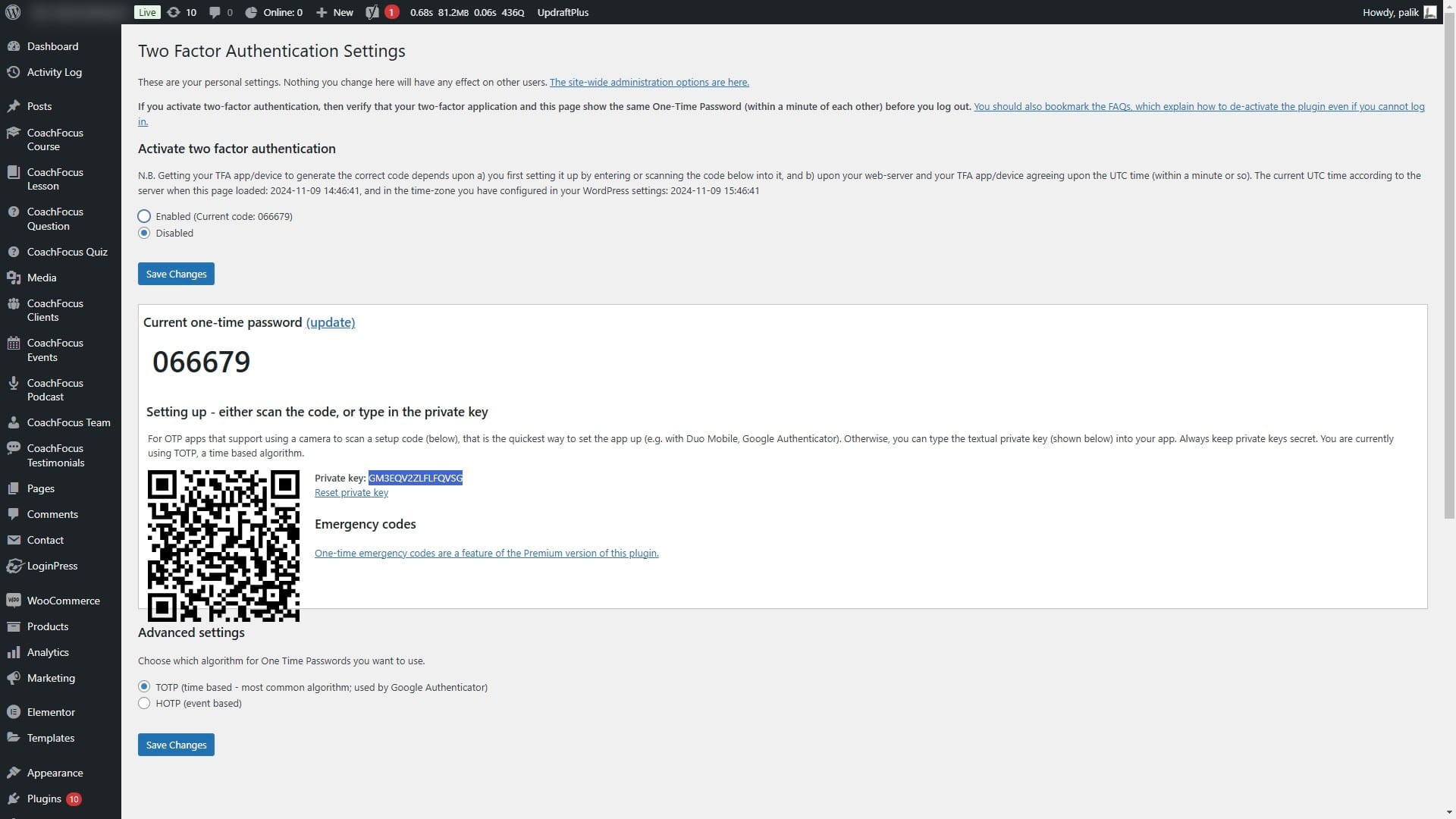
Make sure that the one-time password 6-digit code is the same on the screen and in your Authenticator App. If code is not the same you can be locked out of your account!
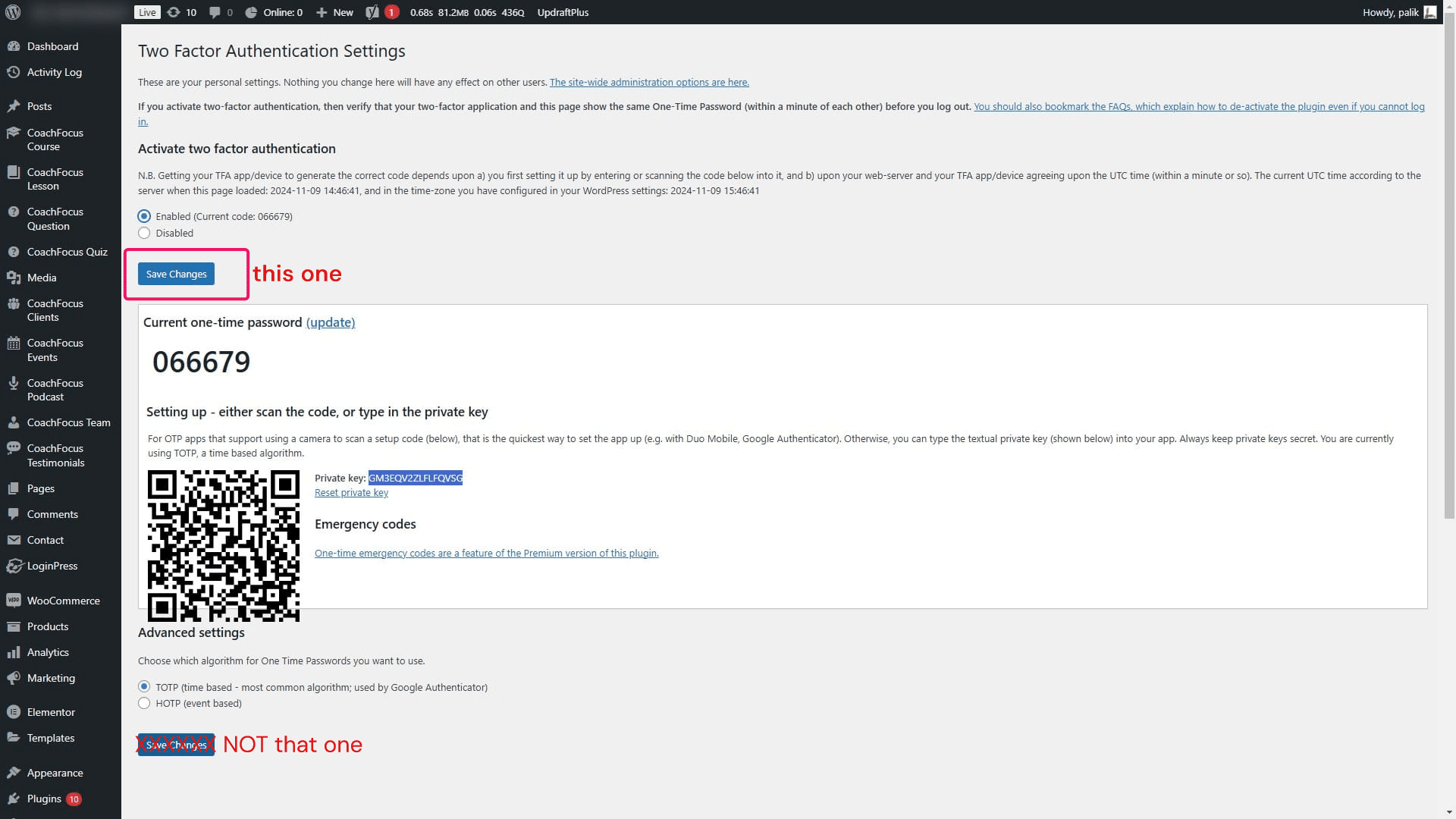
Click "Save changes" (IMPORTANT - use button that is over the QR code, not the one on the bottom of the page)
Click on "Log Out"
Go to login page at https://{{strona}}/wp-admin and log in
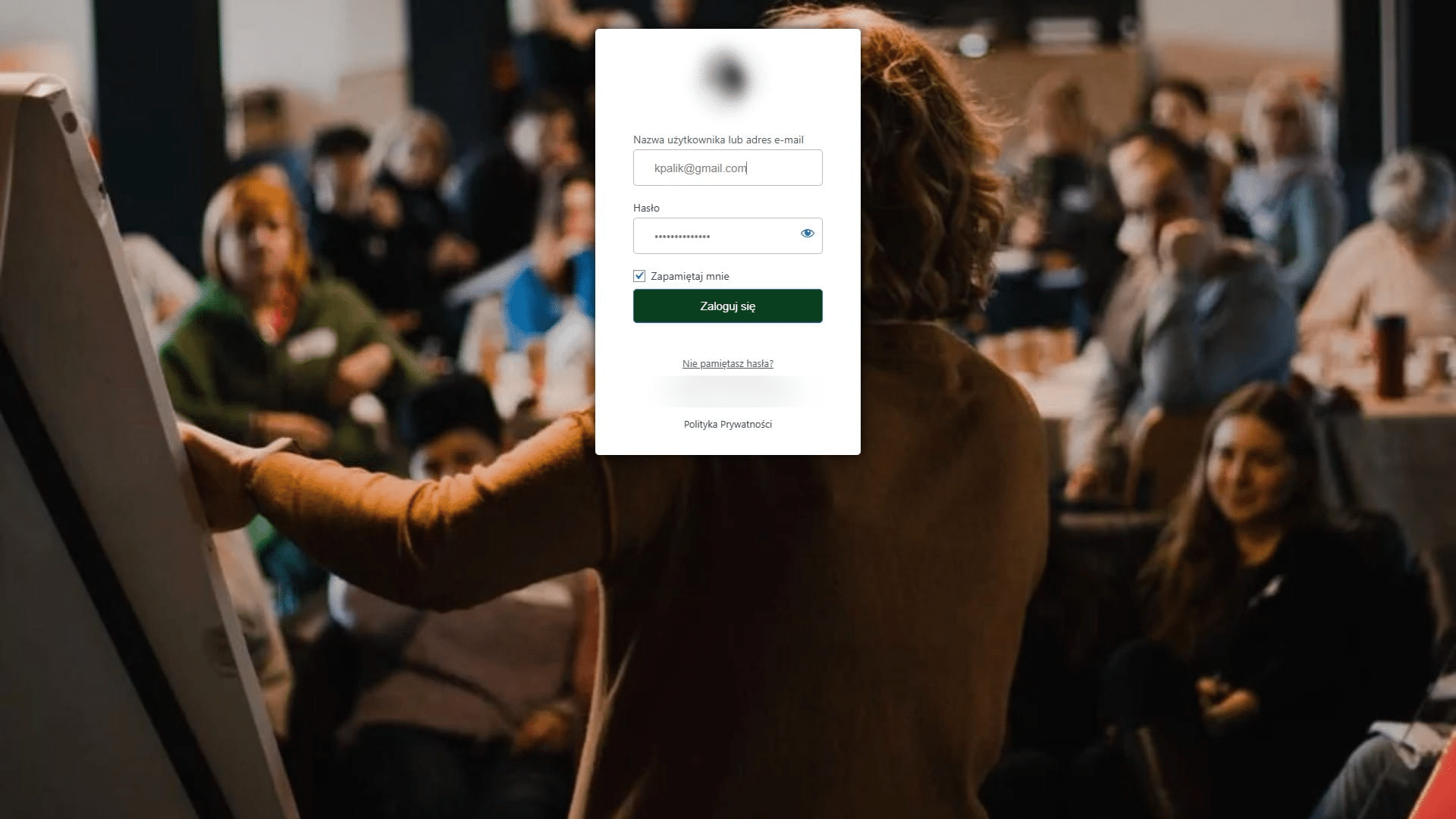
Click here
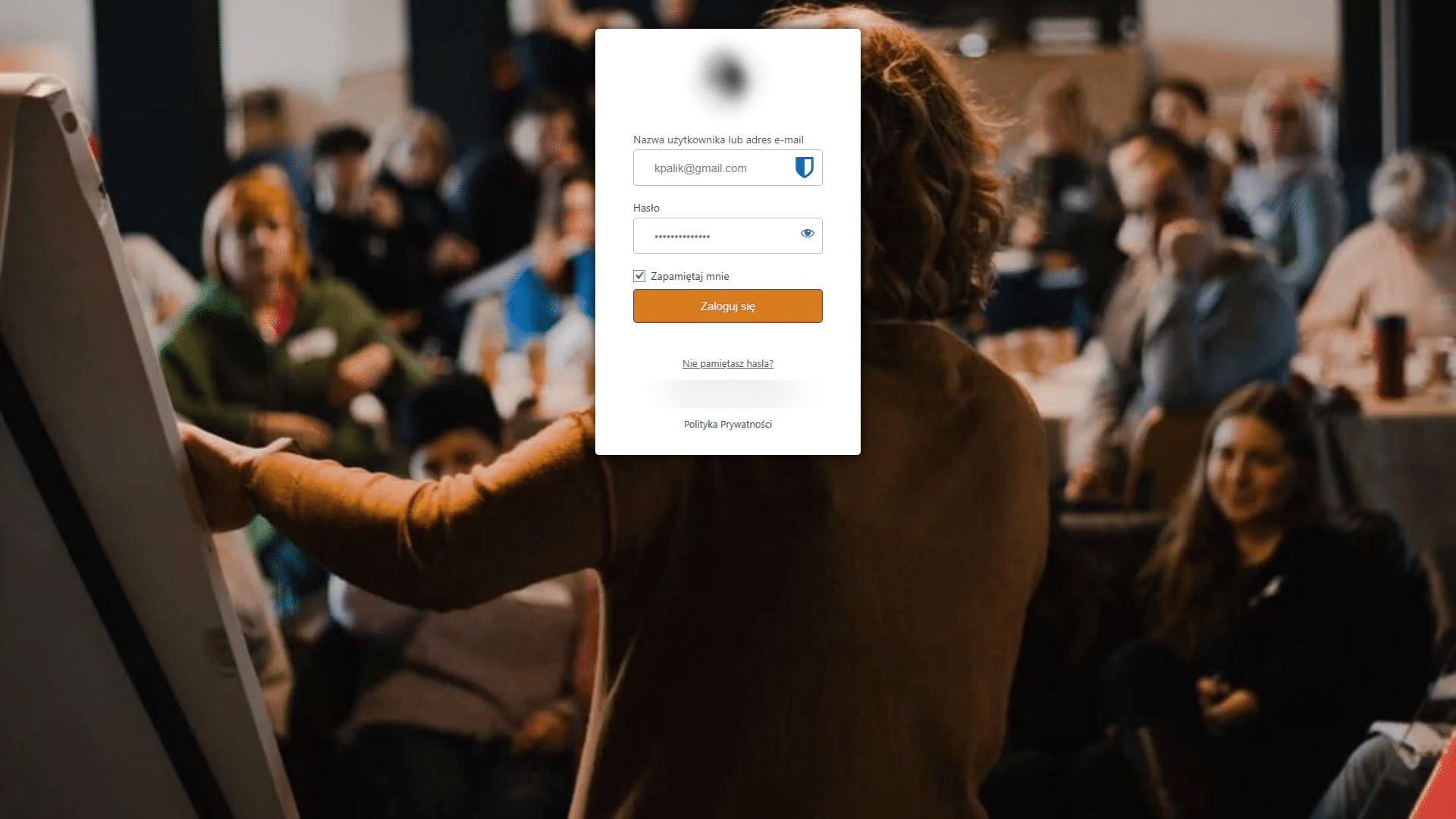
WordPress should now show you additional field for one-time password (OTP)

In this field enter one-time password (OTP) from your Authentication App

Click here

Done 🚀